Showing posts with label Mobile Phones. Show all posts

How to Enable Sideloading On Your BlackBerry Priv And Other Android Phones

All Android phones are set so that only applications from Google Play can be downloaded and installed.  


It's a safety thing, and keeps you from installing those malicious applications you keep hearing about but don't know anyone who was ever affected by them. We think that most users should leave things at the default and enjoy the over one million apps in Google Play, but there is one very good reason to change this setting — the Amazon Appstore.

If the BlackBerry Priv is your first Android phone and you're coming from the BlackBerry ecosystem, there's a good chance you have quite a bit of content in the Amazon Appstore. You don't have to lose any of it!
  • Open the device settings on your Priv
  • Scroll down until you see the entry labeled Security, then tap on it
  • Scroll down and you'll see an entry for "Unknown sources"
  • Tap the slider switch and enable them
You'll get a pop-up window warning you that your phone and personal data are more at risk because you enabled this setting. That's true — you can now install any Android application from any source. Changing the setting can also put you at risk whenever any exploit tries to auto-install an application. But you'll need to enable unknown sources if you want to use apps you didn;t download and install from Google Play.

Note:   Just be careful. Never download any file where you don't know or trust the source.

Read More »

How To Install Android SDK for Windows, Mac and Linux: A Complete Guide & tutorial


Everything you need to get started with the Android SDK, and everything you need to know about installing it.


nstalling the Android SDK is far easier than it used to be, thanks to a new package from Google. One download gives you most everything you need to communicate with your phone via the USB port, using tools like adb and fastboot.

Let's begin.....

1. Getting started with the Android SDK

I told you this was pretty easy, and that there was just one file to download. Here it is. Download the SDK direct from Google by clicking here. Scroll down a bit and find the section marked "SDK Tools Only" and save it somewhere easy to get to, like your desktop. We'll be extracting it to a better location in the next step.
The file you downloaded is compressed. You'll need to be familiar with compressed files — and extracting them — to go any further. If you're not, stop here and spend the time to learn about them.
Extract your compressed file into the following location:
  • Windows: The root of your C: drive
  • OS X: Your home folder
  • Linux: Your home folder
Rename the extracted folder to "Android". This will make the rest of this guide, and your time with the SDK, much easier.

2. Prerequisites


You'll need a working version of Sun Java to run the SDK components. Advanced users may try alternatives like Open Java, but for this guide we're sticking with the official Sun Java from Oracle. Yes, that Oracle.

On a Mac, it's pretty easy because you'll already have it installed unless you uninstalled it. If you did, install it again — you should know how.

On Windows, head to the Oracle website and download the correct version (32- or 64-bit) for your computer. Again, if this gives you any trouble stop what you're doing and learn a bit more about your computer. If you can't install Java, maybe you're not yet ready to use the Android SDK.

On a Linux computer, you'll also need to install Sun Java from Oracle. You can find x86 and x64 binaries at the Java website. If you need more assistance, or want to use a package manager to install Java, you'll need to refer to the documentation for your particular distro.

Linux users will also have to make sure they have some 32-bit libraries installed if they are running a 64-bit version of the operating system. If you're using Ubuntu or an other Debian variant, install ncurses5 and stdc++6 through your terminal: sudo apt-get install lib32ncurses5 lib32stdc++6 
 
Packages for other distros, like SlackWare or Fedora should be available as well. See the documentation for your particular distro.

3. Setting your PATH


The PATH variable in your computer's operating system tells it where to look when you want to run a command from a terminal or the command line. For example, to run the adb command you either need to type and provide the complete path — ie the folder adb is actually in, inside the SDK folder — or have the location set in the PATH variable itself. It's a bit confusing, but the good news is that doing it is easier than explaining it.
For these directions to work, you will have to have extracted and renamed the SDK download folder as mentioned above, and to the correct location for this tutorial.

4. On Windows

You no longer can set the PATH in the autoexec.bat file or autoexec.nt file. You'll need to update the system Environment Variable settings instead. Here's how it's done on a Windows 8 machine:
  • Hit the Start key on your Keyboard.
  • Start typing the words Environment Variables.
  • As you type, you'll see the choice to Edit the system environment variables. Choose it.
  • In the Environment Variables window, select the PATH line item in the Systems Variables section, then click the Edit button.
Add the full path to the Android SDK tools and Android SDK platform-tools folders in the edit box, separated by a semi-colon. It should look something like this:
C:\Android\tools;C:\Android\platform-tools
For older versions of Windows, refer to the documentation that came with your computer for assistance on setting the PATH. And, again: If you've installed your sdk somewhere other than \Android, you'll need to adjust accordingly.

5. On OS X

You can set your PATH variable on a machine running OS X in your bash profile. Doing so is easy, and is all done in one file.
In your Home folder is a file named .bash_profile. Open it with any text editor.
You may see a blank file, or it may be full of other information. All we need to do is add a couple lines to the top of the file:
export PATH="$HOME/Android/tools:$PATH"
export PATH="$HOME/Android/platform-tools:$PATH"
(Did we mention that if your SDK is in another location, you'll need to adjust things accordingly? Good.)
Save the file, and reboot your computer so the new PATH is sourced properly.

6. On Linux

 
 Setting the PATH on a Linux computer is almost the same as on a Mac, you just edit a different file.
Using your favorite text editor, open the ~/.bashrc file. It will probably exist and have multiple entries. If you get an error that the file does not exist, simply create a new file and save it as ~/.bashrc when finished.

You'll want to add the following two lines to the END of the .bashrc file:

export PATH="$HOME/Android/tools:$PATH"
export PATH="$HOME/Android/platform-tools:$PATH"
 
Save the file, and reboot your computer so the new PATH is sourced properly.

7. Wrapping it up


If you made it this far, you have successfully installed the Android SDK and can now use tools like adb and fastboot. Pat yourself on the back and have a frosty beverage. We're going to talk a lot more about how to use these tools in future articles, as well as making sure your phone is ready to go and connected.


Your Android is your oyster, and you'll need no sword to open it.
Read More »

How to unlock the "Nexus" 6P or Nexus 5X bootloader

 Bootloader freedom

Your new Nexus 6P or Nexus 5X comes from the factory with a locked bootloader. While unlocking it is trivial, it's important to remember that an unlocked bootloader is very unsecure, and makes your personal data more vulnerable should someone get your phone in their hands. If you're not the type of person who wants to flash ROMs or system images or the like, it's probably best to leave it locked. That's for you to decide.

Should you decide to unlock your bootloader, remember that doing so will erase all the user data on your phone and return it to the out-of-box state. Still with us? Cool. Here's how to do it.

You'll need a working installation of fastboot on your computer. Yes, you need a computer to unlock the bootloader. We recommend that you install the Android SDK and the official Google USB driver if you're using Windows, but there are toolkits and bundles available if you'd rather go that way. We're going to go with the premise that you've downloaded and installed the Android SDK for your computing platform, and any needed drivers for Windows computers.

Next, you'll need a suitable cable. In this case, suitable means one end needs to be USB Type-A to plug into your computer, and the other needs to be USB Type-C to plug into your phone. For the Nexus 6P and 5X, we recommend you use the one that came in the box.


Now you need to give permission for the bootloader to be unlocked. And to make things easy, enable USB debugging on your phone. Go to settings, About phone and find the entry labeled build number. Tap it five times, read the pop up telling you that you're a developer now, then go back to the main settings page. Near the bottom, you'll see a new entry labeled Developer options. Tap it to get in there, and toggle the switch to allow OEM unlocking, then enable USB debugging.


Now connect all the things together, and fire up the command line on your Windows computer or a terminal program on your Mac or Linux computer. Make sure your phone is unlocked and the screen is on, because you'll be asked to authorize the computer and give it permissions to communicate with your Nexus 6P over a wire. Once that's done and sorted, it's time to do some typing.


On your computer, at the command prompt type: adb devic
 
If everything is good, you'll see the phone's serial number in your command line window. If not, you probably have a PATH issue. See the tutorial about setting up the SDK for help if you're using a full SDK installation, or ask in the developers support thread if you're using some sort of toolkit. As a workaround, you can navigate to the folder with the adb and fastboot executable files and work from there. If you do this on a Mac or Linux computer, remember your dot and slash: "./adb devices" for example.


Once you have things sorted, it's time to reboot to the bootloader: adb reboot-bootloader
 
When you get to this stage, you will need to use fastboot to communicate instead of adb. If you're working out of the folder where the fastboot command is located, remember that dot and slash if you're using a Mac or Linux computer. Try this command to see if everything is working: fastboot devices
 
See the serial number like we did with the adb command? If so, you're good to go. If not, you need to troubleshoot. If you're using Windows and having issues, chances are it's the driver. In any case, hit the forums and work out why things aren't communicating if you need to.

fastboot devices

Up until now, things are the same here as they have always been with Nexus phones. But the command to actually unlock the bootloader has changed. When you're ready, at your command line,  type: fastboot flashing unlock
 
Remember — this will erase everything on your phone and restore it to the way it came out of the box.


You'll need to confirm this action on your phone's screen, using the volume and power keys. Follow the instructions on your screen.


Let it do it's thing, and when it's done send one more command to make things final: fastboot reboot
 
After recovery erases everything and you've booted back to Android (at the device setup screen) you can unplug your cable and use your phone normally.


If you ever decide to relock your bootloader, you can do so with this command: fastboot flashing lock

  
Remember, if you need to unlock your bootloader again, things will get erased again.

That's it. Your bootloader is now unlocked, and you can flash both official and unofficial firmware to your Nexus. In fact, you'll be reminded that your bootloader unlocked each and every time you start your phone. Stay safe, and choose wisely!


Read More »

Complete Easy Step By Step Guide On How To Root All Android Mobile Phones (Lg, Samsung, Infinix, Htc and the likes.)

Everything you need to know about rooting your Android Mobile Phones

While your Android isn't in the same sort of jail an iPhone lives in, rooting can help you break out.
If you've researched anything about Android on the internet, you've probably seen and read about "rooting" one. There was a time when many of the Android phones available didn't live up to their potential, and root was the answer. Horrible software was the norm, applications that you would never use ran amok and wasted data and battery life, and the experience was bad all around.

Because every Android phone is running the Linux kernel and middleware very similar to a Linux distribution you would install on a computer under the hood, rooting them was the way to allow us to try and fix them our own way. Rooting is how you get complete access to everything in the operating system, and those permissions allow you to change it all. Modern Androids are quite a bit better than they used to be. Even the most inexpensive phone or tablet you can buy in 2016 will do more and perform better that the best Android phone available just a few years ago. But many of us still want to root our phones and are looking for more information.

Table of contents


What exactly is root?

 When you root your Android, you're simply adding a standard Linux function that was removed.

Root, at least the way we're talking about it here, is the superuser. Your Android phone uses Linux permissions and file-system ownership. You are a user when you sign in, and you are allowed to do certain things based on your user permissions. Apps you install are also given a type of user ID, and they all have permissions to do certain things — you see those when you install them on older versions of Android, or you are prompted to allow them on Marshmallow or higher — in certain folders with certain files. Root is also a user. The difference is the root user (superuser) has permissions to do anything to any file any place in the system. This includes things we want to do, like uninstall application forced on us by the people who built them or the people who sells them to us as well as things we don't want to do that can put your Android in an unusable state. When you're doing things with superuser permissions, you have the power to do anything.

When you root your Android, you're simply adding a standard Linux function that was removed. A small file called su is placed in the system and given permissions so that another user can run it. It stands for Switch User, and if you run the file without any other parameters it switches your credentials and permissions from a normal user to that of the superuser. You are then in complete control, and can add anything, remove anything and access functions on your phone or tablet that you couldn't reach before. This is pretty important, and something you should think about before you begin.

Should I root my Android?


Yes. No. Maybe. All three answers are perfectly valid. People have different reasons to want to root their devices. Some do it just because they can — they paid for the hardware and think they should be able to do anything they like. Others want to be able to add things that aren't there, like internet servers or be able to "fix" services that are there but don't work the way they would like them to work. People might buy a phone because they like the hardware, but hate the software and want to change it. Mostly, people root their phones because they simply want to get rid of the extra things on it that they don't want. Every one of these reasons — as well as any reason you might have that aren't mentioned here — are the right reasons.
  
# Most people want root to get rid of the bloat.

Before you do any preparation to root your phone, you need to remember that it changes everything about the inherent security from Google and the people who built it. Plenty of us don't like it, but being able to access an account with admin permissions was not included in release versions of Android on purpose. As soon as you add this capability, you are responsible for the security and integrity of the operating system and every application on it. For some, this is more responsibility than they want or need. Rooting isn't the answer for everyone. If you're not sure about the ways you can break things by doing them as root, you should learn more about it before you start. It's OK to not know things and to try and learn, but not knowing and doing them anyway can turn a very expensive Android into a paperweight. You also need to know that for many Android models, rooting means your warranty is null and void. Services (including apps as well as network access from your carrier) can be denied to you because of the security risk when you're rooted. The risk is real, because so many users go into it all blind and let security lapse. Not doing that is your responsibility — take it seriously!

Finally, there are plenty of users who simply don't care about this stuff. Any Android phone, no matter how restricted root access is, can do just about everything we want or need from a pocket computer. You can change the appearance, choose from over a million apps in Google Play and have complete access to the internet and most any services that live there. You can even make phone calls. It's great if you're happy with what you have and what it can do, and aren't worried about trying to fix what isn't (in your eyes) broken.

Getting ready to root


You'll need to do a few things to prepare your phone for rooting, depending on which method you use. Many of the ways require you install the Android SDK or unlock your bootloader. This sounds like a lot of scary work, but it's not difficult and knowing how to use these tools will help if things go wrong.

Depending on which phone you have, unlocking the bootloader is slightly different. The "standard" way is by using the OEM unlock command, which is outlined here. If you're using a Motorola, HTC or LG phone (as well as other brands like Huawei or Sony) you'll likely need to get a token you enter during the process. You'll find how to do that and who to get it from at each vendors developer pages. Remember that unlocking the bootloader on your Android may affect the warranty status.

  Using commercial root apps

Using commercial rooting apps like Kingo Root or towelroot is straightforward, and can be done with or without a computer. While these apps can't root every phone, the people who make them are doing as best they can to keep the applications current.

While we can't validate the theories that these applications could potentially contain malware or send your data off to a server in some unfriendly nation, plenty of folks around the web have expressed concerns and doubts. You shouldn't ignore them. We recommend that you factory reset your Android before you download, install or run these applications to be safe. Your phone will remain rooted afterwards, and you can factory reset once again then sign in normally. Better safe than sorry.

Using Kingo Root

You can use Kingo Root with or without a computer. You'll find the download for both methods at the Kingo Root page — just select the one you want to use.


If you're using a windows computer with Kingo Root, you'll need to have the correct USB drivers installed on the computer you're using. If you don't have these, the Kingo Root program will try to locate and install the correct ones during the process. Simply plug your phone into the computer and start the application. It's as simple as letting the software set things up, then you click the button labeled "root" in the software. As long as your phone is supported, the rest is automatic. You'll see a list of recommended root application to install after the procedure is finished, but if the program say it was successful your phone should have the superuser unlocked .

Kingo Root Apk

It's easier to try and use the Kingo Root app on your phone to root. After you've downloaded it (and allowed sideloading of apps) you charge your phone to at least 50% and run the app. There's only one button to press, and after you tap it the rest is automatic. If the stand-alone version isn't successful, the computer version might be. Full instructions and tutorials for supported phones can be found at the Kingo Root support page.


It's easier to try and use the Kingo Root app on your phone to root. After you've downloaded it (and allowed sideloading of apps) you charge your phone to at least 50% and run the app. There's only one button to press, and after you tap it the rest is automatic. If the stand-alone version isn't successful, the computer version might be.Full instructions and tutorials for supported phones can be found at the Kingo Root support page.

Using towelroot

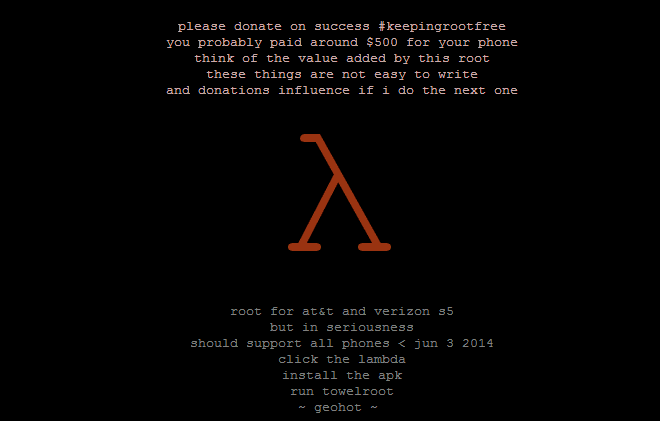
Towelroot is a popular rooting app written by Geohot, the well-known iPhone hacker. Using it is really easy:
  • Download the towelroot application from the official site
  • Install the app (after you allow sideloading) and run it by tapping the Lambda (the Greek letter) symbol in the middle of the app window
Towelroot will attempt to exploit the running kernel, giving temporary access to the system files. Once that happens, the correct files needed to run as root are pushed to the file system. A quick reboot later, and you're rooted.
Only install towelroot from the official towelroot page. There are plenty of mirrors and variants out there, but it's always safest to get files like this directly from the source.

How to root my phone?
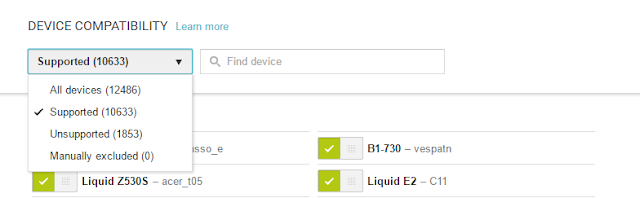
 

How you root your Android is going to depend on which one you have. There are over 12,000 different Android models (and that's only counting ones that can access Google Play) from hundreds of different manufacturers. Some of those are easy to root, while some of them aren't. There are even models that will probably never be able to be rooted because the people who make or sell them just don't want you to be able to do it. And that's OK! Android means choice, and every person who wants a security-focused device that won't likely ever be rooted like the BlackBerry Priv should be able to buy one. And people who want a device that's easy to root (with all the tools and files needed to unlock it provided by the manufacturer) can buy one. This is something to keep in mind when you're buying your next phone and you should support the manufacturer who shares your thoughts about rooting. With over 12,000 different models, we can't cover every single method to root every single device. We can point you in the right direction and help you get there, though.

Rooting your Samsung phone


Samsung used to offer "developer editions" of their popular models, but weak sales (they usually needed to be paid for in full with no type of subsidy or financing) they seem to have stopped production. We have only ourselves to blame — it's just not worth making something that nobody is buying.
Samsung also makes very lucrative deals with carriers, and most of the time those carriers want to prevent you from rooting your phone. Recent models from AT&T or Verizon are notoriously difficult to exploit, and all the U.S. versions of the Galaxy S7 are locked up and encrypted. There might not ever be a way to root them. This isn't true for unlocked models sold outside of North America though.
  
Knox can pose special problems when trying to root. 


To root most Samsung phones you'll need to use a program called Odin. It's a low-level firmware flashing tool that can push image files to the storage and overwrite existing images. You'll also need the correct USB drivers for Windows computers. If you're using a Mac computer or running Linux, the software that flashes images is called Heimdall. They both work essentially the same, and carry the same risks — if you try and flash the wrong image or a bad image, your phone isn't going to be able to start. While this is often recoverable, know that there is always a chance you can ruin your phone or tablet, and your warranty is voided as soon as you begin.
Also, many Samsung phones ship with Knox security enabled. Knox is part of Samsung's special "Samsung Approved For Enterprise" feature where personal and work environments can be separated in a way that allows both to coexist on the same device. Knox can pose special problems when trying to root a phone that uses it, and it has a software counter that can show when device firmware has been tampered with. This means it's very easy for Samsung to void your warranty if you start fiddling with things.

Rooting your LG phone


LG phones have several different methods to install the files needed for rooting. Some are completely bootloader unlockable and it's trivial to push the files through a custom recovery, while some are locked up tighter and require some special tricks. As we see with Samsung phones, carriers have a lot of influence here, so many AT&T and LG models take longer to find a method to root.

The LG G5 is simple to root, and you can do it without a computer with both commercially available rooting apps as well as apps from Android enthusiasts like yourself. There are security questions any time you use software built by someone else that could potentially have full access to all the data on your phone or your computer, and you'll need to read everything you can and decide if you want to go this route. Apps like OneClickRoot or AndroidRootPro are a few examples. 

There are plenty of satisfied users as well as users who question the methods. Listen to both sides and decide what you think here. An alternative is unlocking your bootloader and installing an open-source custom recovery that you can use to flash the needed files or even pre-rooted firmware. This requires a little bit of computer knowledge, but it's not that difficult.

Rooting your HTC phone


Much like LG phones, many HTC models can be bootloader unlocked through the HTC Developer program. You'll find complete instructions for doing it here, as well as warranty information you need to know if you give it a try.

The HTC 10 is easy to root, and using the HTC Developer tools to unlock the bootloader allow for sending images to the phone to enable rooting and even more. There are also commercial services like Sunshine that can root your phone through an app or provide mail-in services where they do it for you. Again, it's up to you to decide if you feel comfortable with these services or if you would rather use the Android SDK and do things the manual way. Both methods are known to get you rooted and ready to do the things you wanted root to do.

Rooting your Lenovo (Motorola) phone


Motorola also offers a pretty liberal bootloader unlocking policy, which you'll find at their developer site. Using the standard Android SDK tools, you can unlock your bootloader so that a custom recovery image can be flash. This allows you to flash any other system image to your phone.

If your Motorola phone isn't covered under their bootloader unlocking policy (see the list here) — this means Verizon, of course — you might have to resort to exploits or commercial software like MOFOROOT or OneClickRoot. Once again, we have to remind you about using tools created by someone else that may have admin access on your phone or your computer, but the option is available.
We're waiting to see if the coming generation from Motorola is as developer friendly as they have been in the past, and we'll update accordingly.

Rooting your Nexus phone

To root your Nexus phone, you should start with learning how to install and configure the Android SDK. There are plenty of one-click scripts or toolboxes that will unlock your bootloader and get you ready to flash (or even flash it for you) a custom recovery, but there's a great reason to learn how to do it yourself — you are able to fix most anything if it goes wrong by using the Nexus FactoryImages.

Google not only supports unlocking your bootloader, they also give you full and complete instructions on how to do it, how to flash third-party images and how to go back. Unlocking the bootloader doesn't break any warranties as Google realizes that there are many valid reasons to flash experimental on the developer/reference device for Android. Take advantage of this, and use the tools Google provides!
Once a third-party recovery image is flashed, you're easily able to push anything you need for root or any other image to your Nexus. Because it's the reference phone and easy to alter, you'll find plenty of tools and resources for things you can do after you've rooted. We highly recommend a Nexus phone to anyone who wants to tinker with the Android software platform.

Other phones

As mentioned previously, there are over 12,000 current Android models from hundreds of manufacturers. There's no way to include each and every one on a single page.
Some of these phones come with a method (either apporved by the manufacturer or found by a third-party) to unlock the bootloader and use the custom recovery method to root them. Many of these other phones can be rooted with applications like Kingo Root, with or without access to a computer. Phones from names you know, like Sony or Hauwei, are supported as well as phones from companies you might not have heard of like Vivo or Phicomm. You'll find a partial list of supported phones here. 

Commercial root apps work, but check out the pros and cons before you use them.

 Apps like Kingo Root work because they take advantage of an exploit (a bug or glitch) in the software. This means that many security applications will identify them as a virus, and that software updates can (and do) break compatibility with them. Not every phone can be rooted through an app that leverage an exploit, but many can. It's certainly worth a look to see if your particular phone is supported. These services are profitable, and profitability means time and money is spent to keep them current and working on as many models as possible.

 By Jerry Hildenbrand


Read More »

T-Mobile Phone Carrier To Pay $7.5 Million Fine

T-Mobile


T-Mobile USA failed to adequately disclose speed and data restrictions on its "unlimited data" plans and has agreed to pay a fine and provide some benefits to customers, the Federal Communications Commission said today.

Like other carriers, T-Mobile slows the speeds of its unlimited data customers after they've used a certain amount of data each month; when these customers connect to congested cell towers, they receive lower speeds than customers without unlimited data plans. The throttling is applied after customers use 26GB in a month.
"Under its 'Top 3 Percent Policy,' T-Mobile 'de-prioritizes' its 'heavy' data users during times of network contention or congestion," the FCC said in an announcement today. "This potentially deprived these users of the advertised speeds of their data plan. According to consumers, this policy rendered data services 'unusable' for many hours each day and substantially limited their access to data."
T-Mobile signed a consent decree in which it agreed to pay a $7.5 million fine to the US Treasury and provide some discounts and extra data for T-Mobile and MetroPCS customers. (MetroPCS is a T-Mobile subsidiary.)

From now on, T-Mobile will also have to provide clear and conspicuous disclosures about the speed and data limits of its unlimited data plans in all sale, advertising, and marketing materials. Alternatively, T-Mobile can comply by removing the word "unlimited" from the plans, or by no longer throttling unlimited data users. It seems likely that T-Mobile will take the first option of improving its disclosures—the FCC noted that T-Mobile already improved the disclosures a bit in June 2015.
The FCC alleged violations of the commission's Open Internet transparency rules, saying that "T-Mobile’s public disclosures about the de-prioritization policy prior to June 2015 were not sufficient to fully inform consumers about limitations imposed on the UDPs [unlimited data plans], because they did not identify the data usage threshold that would trigger application of the policy, did not explain how the policy could impact a de-prioritized customer’s ability to use their service, or discuss the data throughput speed reduction a de-prioritized customer could experience."

“Throttling”

For a couple of years, T-Mobile spokespeople have repeatedly asked Ars to stop using the word "throttling" to describe the company's practice of slowing certain customers' speeds, even though throttling is a commonly used term for speed reductions imposed by Internet service providers. In one e-mail earlier this month, a T-Mobile spokesperson insisted that our latest article's "use of the term 'throttling' in incorrect... This is prioritization, which every network operator does." T-Mobile also asked us to delete the "Dead Slow" image at the beginning of that previous article.

But as the FCC's order says, T-Mobile itself has abandoned its insistence that this is only "prioritization" in disclosures to consumers. Before June 2015, T-Mobile merely told consumers that their data speeds might be de-prioritized below those of other customers. The updated disclosures in June 2015 "state that affected customers 'will likely see significant reductions in data speeds, especially if they are engaged in data-intensive activities,'" the FCC said.

The new disclosures also tell unlimited data customers the actual amount of data they can use before being throttled, whereas previously T-Mobile merely said that the slowdowns "would be triggered when the customer used 'more data than what 97% of other customers use' based on historical use," the FCC said.

The FCC received hundreds of complaints from T-Mobile and MetroPCS customers. "These customers complained that they were not receiving 'unlimited' data as had been sold to them, that their data throughput speeds after de-prioritization caused their data service to be 'unusable' for many hours each day, that the de-prioritization policy led to them consuming 'half' of the data they wanted to use, or that they had gone to too much trouble changing plans from another carrier to switch again, even though they felt misled by T-Mobile," the FCC said. "In April 2015, a T-Mobile UDP customer complained of feeling 'stuck' with T-Mobile because they were still on a payment plan for their T-Mobile phone, despite 'paying $300 a month' for 4 lines of 'unlimited data,' yet feeling that T-Mobile wasn’t providing the service it advertised. One de-prioritized customer stated that the applications he likes to use to watch movies 'are now unusable' due to the slow speeds he experiences after being de-prioritized."

The consumer benefit program that T-Mobile agreed to will provide discounts of up to 20 percent or $20 off any in-stock accessory, and an additional 4GB of data. That isn't 4GB every month, however—it's just a one-time addition of 4GB, and it is only for unlimited data subscribers who also purchase data for another device such as a tablet. (The 4GB can be rolled over for customers in the T-Mobile "Data Stash" program, so it wouldn't have to be used the first month.) T-Mobile will notify eligible customers by December 15, and consumers can get more information at the T-Mobile and MetroPCS websites.
The benefits in this program are expected to total up to $35.5 million.

T-Mobile will also spend at least $5 million in low-income school districts to give students free devices such as tablets and free mobile broadband. If the consumer benefit program we previously mentioned ends up providing less than $35.5 million worth of benefits, T-Mobile will take the difference and add it to the low-income school program. The school program is expected to start in October 2017 and help up to 80,000 students over four years.

The FCC has also been trying to punish AT&T for misleading customers about unlimited data plans. The FCC proposed a $100 million fine in June 2015, but AT&T challenged the decision. AT&T and the FCC could come to some agreement similar to the one announced today with T-Mobile, or the FCC could issue a final ruling requiring AT&T to pay a fine. But if it comes to that, AT&T could try to reverse the penalty by taking it to the US Court of Appeals.

Source:
Read More »

HOW TO SPEED UP YOUR TYPING ON ANDROID AND iPHONE


Life is too short to type out the same stuff, over and over again, on your smartphone’s cramp-inducing keyboard.


Thankfully, both Android and iOS have hidden tools that turn a short phrase into a big chunk of text: your most-used expressions, addresses and phone numbers. Enable them in a few easy steps…then find something to do with all your new free time.

On Your iPhone
 Head into Settings > General > Keyboard > Text Replacement. Already preloaded, you’ll see the “omw” shortcut. Type “omw” anywhere and it will automatically expand to “On my way!”
You can create your own by tapping the “+” in the upper right corner. In the “Phrase” field, type the chunk of text you’d like a shortcut for—your work address, for instance.

Then in the “Shortcut” field below, type the snippet you want to trigger the phrase. For instance, “workad.” Hit save.

Add as many as you’d like. They are great for phone numbers, email addresses and common sayings. Just remember to pick a shortcut you’d never actually use in a sentence. “Rnl” is a better shortcut than, say, “Run” for the phrase “Running late!”
The phrases aren’t case sensitive, so the tool will automatically capitalize at the beginning of sentences, and will follow your lead if you capitalize the shortcut. Also, it can work even if you use keyboards besides Apple’s default one.

Note: Apple syncs these to the Cloud with iCloud so the shortcuts will work across your synced iOS devices and Macs. The data are encrypted on Apple’s servers; however, if this still worries you, refrain from creating shortcuts for highly personal information.

On Your Android Phone
On Android, the location of the setting can vary by keyboard, OS version and phone.
Generally, it can be found in the Android Settings menu. Select Language and input > Personal dictionary. Tap the “+” in the top right corner and in the first field type the chunk of text you want a shortcut for. In the “Shortcut” field, type your trigger phrase. (If you don’t see these settings, download the Google Keyboard app.) When you type your trigger, the longer chunk of text will appear above the keyboard to insert.

On Samsung phones, Samsung’s own keyboard has a similar feature under Settings> Language and input > Samsung keyboard > Text shortcuts. Select “Add” in the upper right corner.

If you enabled data backup on your Android device, Google says it stores the info encrypted on its servers. Samsung, however, says its phrases are stored only on the phone.

Write to Joanna Stern at joanna.stern@wsj.com
 
Read More »

Advantages of Google’s new Pixel over other Android phones

 
Countless Android challengers have assaulted the iPhone’s iron grip on the public, but the Apple (AAPL) device steadfastly remains the most popular phone with over 100 million in active use. So far, the closest competition has come from Samsung, whose Galaxy phones consistently earn high marks in tests.

Google (GOOG) (GOOGL) threw its hat into the ring in earnest on Tuesday with its new Pixel phone, which has a huge advantage over almost all the Androids that came before it: a lack of bloatware.

No bloatware
With most Android phones, hardware manufacturers use their own operating systems that merge proprietary features with a standard version of the Android operating system. However, since Google doesn’t produce those features itself, the add-ons frequently earn the moniker “bloatware.” What’s worse, these add-ons aren’t even available until long after pure Android’s release.

As Google took great pains to communicate, the Pixel phone is “#MadeByGoogle”—and not another company. (When tech companies say “made,” they mean “designed” and not literally manufactured.) Not only does this mean that Google itself has control over the hardware design, but it also has complete control over the software. Pixel phones will run only the purest Android and will update straight from the mothership in Mountain View, just like the co-branded Nexus phones that came before it.

This total control over the digital ecosystem and device design finally gives Google the table stakes required to compete with Apple, a company that arguably succeeded due to valuing design as much as tech.

If any company is going to unseat Apple’s phone domination, it’s Google
This may be too little too late for a company trying to unseat Apple for a chunk of the market share, but it’s a step in the right direction.

In fact, if any company has the potential to unseat Apple’s phone domination, it’s Google, which has actually chalked victories against the Cupertino juggernaut. It’s unusual to beat Apple head-to-head in anything, and by my quick count, Google has done it many times: maps (Google Maps vs. Apple Maps), productivity (Google Docs vs. iWork), email (Gmail vs. Me/Mac/iCloud), storage (Google Drive vs. iCloud), and web browsing (Chrome vs. Safari). Of course, this merely means Google’s track record is better than most—not that it has done better than Apple.

Google still has a few things in its favor. Samsung’s exploding phones and Apple’s user-hostile decision of killing the headphone jack make a ripe landscape for an opening to attract alienated consumers. Furthermore, Google will have the ability to seamlessly link its entire suite of platforms into its device—giving it a leg up if CEO Sundar Pichai’s prediction about AI being the next big thing comes true. In the end, this may not be enough to vanquish Apple, but it’ll sure make first real foray into mobile devices interesting, if not auspicious.

Read More »

Samsung Halts Production of Note 7 After Replacement Phones Explode

Samsung has halted production of its beleaguered Galaxy Note 7 smartphone after several replacement handsets reportedly caught fire and ended up with at least one person in a hospital.
On Monday, an official at a supplier for Samsung informed Korean Yonhap news agency of the decision, which is said to have been made in coordination with consumer safety regulators from South Korea, the United States, and China. 


The news is another hammer blow to Samsung's mobile division and its 2016 flagship device, as the company reels from a second round of exploding phone incidents indicating that the replacement handset program at the center of its global recall efforts has failed.

The decision came after all mobile carriers in the U.S. said they would stop issuing Note 7 devices following at least five reports of replacement handsets catching fire over the last five days.

On Wednesday, a flight from Louisville to Baltimore was evacuated while still at the gate because of a smoking Note 7. Saturday saw a Minnesota case involving a 13-year-old girl who said she felt a "weird, burning sensation" while holding her phone and suffered a minor burn to her thumb. "It felt like pins and needles except a lot more intense," she said.

Later the same day, a Kentucky man reported "vomiting black" after his Note 7 caught fire while he was asleep in bed, filling his room with smoke. "It wasn't plugged in. It wasn't anything, it was just sitting there," said the man, who later took himself to ER and was diagnosed with acute bronchitis.

Then on Sunday, another Note 7 bedside incident took place in Virginia. The phone "just burst into flames while on the night stand," said its owner. "I woke up in complete panic." By midday another device had caught fire on a table where a Texas family sat eating lunch together.

All the handsets in the incidents were replacements issued by Samsung, which the company had previously claimed were using batteries that are "not vulnerable to overheating and catching fire." Samsung has yet to explain what's going on with the replacement devices.

Rumors have suggested Samsung's Note 7 problems began after the company rushed the device into production after realizing the iPhone 7 would not feature major design changes, seeing it as an opportunity to one up Apple. Suppliers were pushed to meet tighter deadlines for an earlier launch, leading to critical oversights.

The supplier official who revealed the manufacturing halt this morning described the production as "temporarily suspended", however it is difficult to imagine in what circumstances Samsung would resume production of the Galaxy Note 7, which many observers will now consider a toxic brand.

Early speculation that iPhone 7 could experience an uptick in sales because of Samsung's woes seem increasingly likely. Samsung accounted for 27.8 percent of all smartphones shipped in Q1 2016, almost double Apple's 14.4 percent share, but a big part of Samsung's jump ahead was the early release of the Galaxy S7 and S7 Edge, while the much-anticipated Note 7 was Samsung's attempt to cater for the increasing popularity of larger-screen devices.

Update: Similar incidents of exploding replacement Note 7 phones have also been reported in Taiwan and South Korea.

Read More »

Apple silently developing iPhone 8 in isreal


Apple is using an office in Israel to develop hardware for the "iPhone 8," which is expected to be released next year with a radical redesign, according to an employee at the site.
Details on the iPhone 8 are scarce, but some reports, including this one from MacRumours, suggest that it will have an edge-to-edge display that removes the need for the top and bottom bezels where features like the fingerprint sensor and the front-facing camera are located.

Some hardware for the iPhone 8 is being created in Herzliya, Israel, according to a local Apple employee, who said employees in Israel work on all of Apple's new products.

The employee, whose identity is being concealed by Business Insider, solders components for Apple. This person didn't give too much away about the new handset but said it would be "different" from the iPhone 6s and the iPhone 7, which have been criticised for being too similar to their predecessors.

Speaking with Business Insider outside Apple's Herzliya office at Maskit Street 12, the Apple employee said employees in Israel were working on what's coming "next" in Apple's product line, giving a specific mention to the iPhone 8.

The worker used the term "iPhone 8" unprompted in our conversation. That was interesting because the next logical name for the iPhone to be released in 2017 should be "iPhone 7s." The iPhone 8 isn't due until 2018, as Apple has a two-year development cycle for new iPhones. Some observers have noted, however, that the iPhone 7 was a largely incremental update. S-series iPhones are also supposed to be incremental updates, but the phone that is coming in the 2017 "iPhone 7s" slot is expected to be a much more dramatic improvement to the line. So some people believe that Apple might break its naming tradition in 2017, skip iPhone 7s, and give the iPhone a new number or name out of step with the current sequence. "iPhone 8" would be one option.

The source added that the iPhone 8 would have a better camera than that of the iPhone 6s and the iPhone 7 — something that is fairly standard when a new iPhone enters the market.

The employee was informed at the start of the conversation that they were talking to a journalist. When asked what Apple uses the Herzliya facility for, the source (who spoke only broken English) said "new products." The person added that Apple didn't actually assemble products in Israel.
A second Apple employee whom Business Insider spoke with in Herzliya said they "couldn't talk" about what Apple did in Herzliya, while an employee from the networking giant Cisco, which also has an office in the area, said: "I have three friends that work there. They work on the hardware side. Verifications. Something like that."

An Apple security guard told Business Insider we could not speak with anyone inside Apple's office without an invitation.

There are about 800 employees at Apple's Herzliya office, which is about four years old and situated approximately 15 kilometers north of Tel Aviv's city centre. The office was set up after Apple acquired two startups: the flash memory designer Anobit in 2012 and the 3D sensor developer PrimeSense in 2013. Apple has since acquired the Israeli camera firm LinX.

Sources close to Apple said the company used the research-and-development facility in Herzliya to develop hardware such as chips, storage, cameras, and wireless technologies. Apple CEO Tim Cook said during a trip to Israel in 2015 that the Herzliya office was Apple's second-largest R&D facility in the world, according to The Times of Israel.

The Cupertino, California-headquartered firm also has an office in Haifa in the north of Israel that is home to about 200 employees.

Avi Hasson, the chief scientist of the Ministry of Economy of the State of Israel, told Business Insider on Monday that almost every major Silicon Valley tech firm had an outpost in Israel, adding that the country was a "fountain of innovation."

An Apple representative said the company did not comment on rumour or speculation.

Read More »

APPLE EXPECTED TO REVEAL NEW IPHONE 7

Apple expected to reveal new iPhone 7
Image result for iphone 7


Wednesday is a big day in the tech world. Apple is holding its annual launch event where the new iPhone 7 is expected to be revealed.
The much-heralded device comes just as rival Samsung has recalled its flagship Note 7 over battery issues.

Many commentators expect Apple to have ditched the headphone jack, leaving only one port.
The previous model - the iPhone 6S - was the world's bestselling handset, according to new research.
The study, by Strategy Analytics, said 14.2 million copies of the phone shipped between April to June, accounting for 4% of the market. By contrast, the Samsung Galaxy S7 Edge shipped 8.3 million units over the same period.
However, both fell short of the earlier iPhone 6, which shipped 26.3 million units over the same months in 2015.

"Smartphone growth is sluggish at the moment due to ongoing economic volatility worldwide, high ownership penetration in most major countries, and a lack of new innovation from device manufacturers," commented the market research firm's director Linda Sui.

Two lenses

Dropping the headphone jack in the iPhone 7 would encourage consumers to use Bluetooth headphones or buy those compatible with Apple's Lightning port, which is also used for charging.
However, old gear would not be completely obsolete, as Apple is expected to include an adapter jack.


Image caption The new phone is likely to stick with two sizes of the iPhone 6
Camera quality is expected to be improved and this time round the upgrade might mean a two-lens clicker for some of the bigger models.
Other handsets' dual-lens camera can take pictures with two different exposures, then combine the two images for improved picture quality - but it is unknown how Apple would implement the feature.

Analysis: Dave Lee, North America Technology correspondent

Another year, another iPhone. But then, it's hardly just been "another year" for Apple, has it?
Since last September, when we saw the iPhone 6S and 6S Plus, the tech giant's world has been turned upside down. A war over encryption, a declining iPhone, a continuing struggle in China and, most recently, the tax bill to end all tax bills.
Distractions, lots of them. And it doesn't look like the new iPhone is going to deflect much of that attention away.

While we're used to saying "evolution, not revolution" in the smartphone market, this upgrade is not expected to turn many heads nor send customers running to the phone shop to upgrade.
If, as we expect, the headphone jack is removed from the device, expect a lot of anger from those who don't want to be ushered into buying wireless headphones.
Then again, Apple faced the same kind of anger when it rolled out the smaller "lightning" charging port, but everyone's just about got over that. Take a look at the "old" Apple charger and tell me it doesn't look almost comically massive. In hindsight, the right call.

A better camera would go down extremely well - more photographs are taken with iPhones than any other device. But some reported leaks suggest only the larger, less popular iPhone size will get the new camera technology.
Looking a bit further ahead, some are speculating that Apple is holding back this time around, instead saving new features for 2017 and what will be the iPhone's 10th anniversary.

Other expected change include increased storage and better speakers.
The new phone is also said to be water resistant, handling submersion for up to 30 minutes - a feature already offered by several of Apple's Android competitors from the likes of Samsung or Sony.
Apple is thought to be sticking with its two sizes, meaning there would be an iPhone 7 and an iPhone 7 Plus.

Neither is the design thought to be changing much, giving it the same overall look as the current models.
Rumour has it there will be more colours available, for instance reintroducing black as an option.
While the new models will be revealed to the world at the launch, consumers will have to wait a few weeks before they are shipped. Pre-orders are expected to open on Friday.
The timing still is crucial. Samsung beat Apple by releasing its Galaxy Note 7 last month. The device was well received by users and critics alike and started selling well.


A Galaxy Note 7 reportedly caught fire shortly after its charger was unplugged
But then reports about batteries heating up and sparking some fires prompted Samsung to launch an embarrassing recall last week - just days before the new iPhone makes its debut.
While Samsung's battery problems might tilt some prospective buyers toward the iPhone 7, Apple depends on the ongoing success of its smartphones as they have become its biggest source of revenue.
And after recent bad publicity ranging from issues around security flaws to tax problems, the world's most valuable listed company hopes the iPhone will be a hit.
Read More »